Animated slides you can drag, code and hand to any agent.
OpenSlides is a deck studio that runs on your machine. Start from a brief, pick one of four looks, drop in any of 185 motion components — then present it live, narrate it in another language, or export it as a video.
Free. No account. Bring your own AI key — or use none.
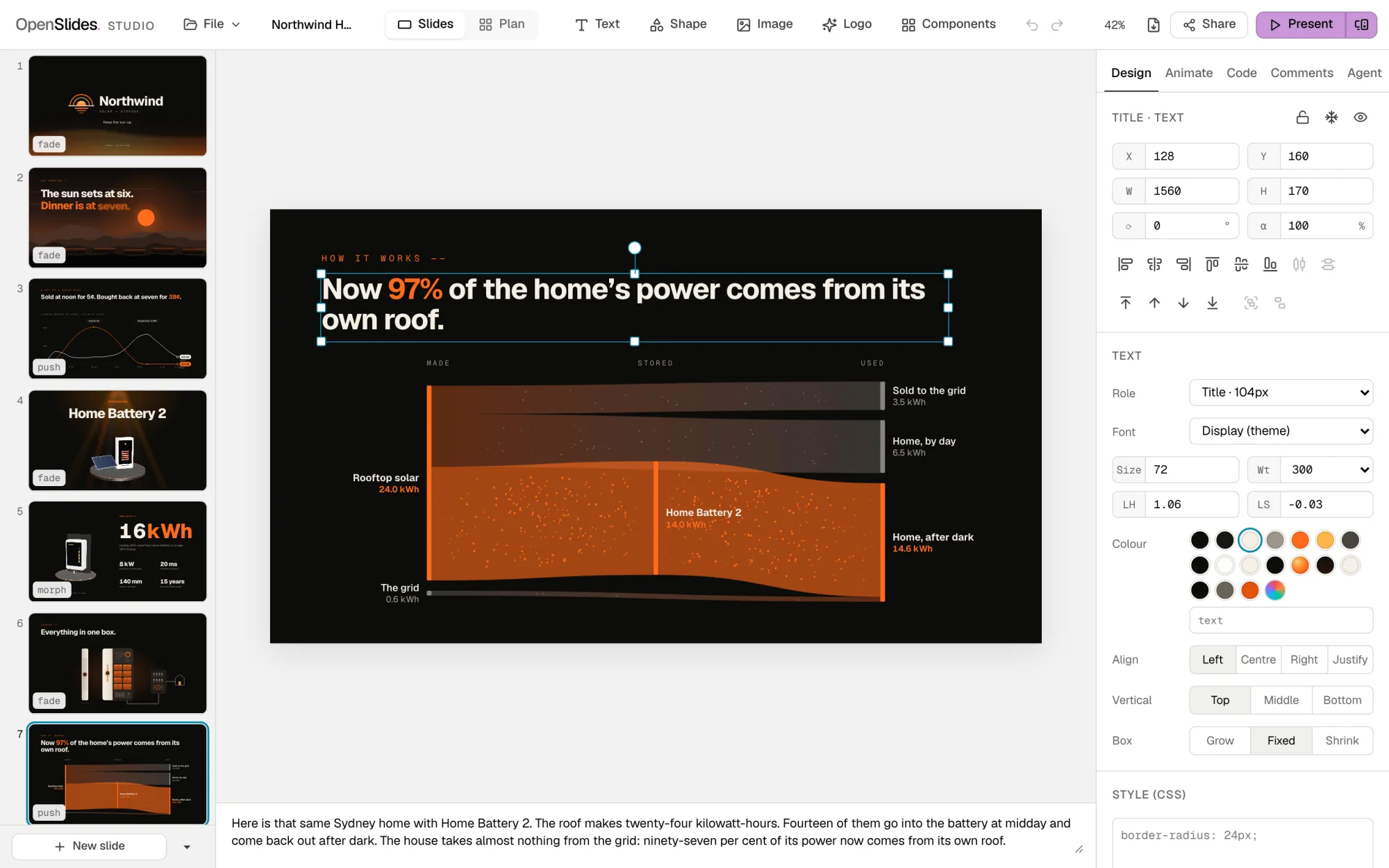
This launch keynote was built, narrated and rendered in the studio.
Seventeen slides for a fictional solar company: a 3D product reveal, a power-flow diagram that fills, a savings slider the presenter drags. Each slide’s notes were read aloud by a voice that runs in the browser, and the deck was rendered to video frame by frame.
- 17slides, one idea each, the notes as the script
- 4:18narrated MP4, 1920 × 1080 at 30 fps
- 0uploads — the voice and the render both ran locally
Fifteen seconds of the export, muted. Slides 4 and 5, with the morph between them.
185 components, every one moving on the slide’s own clock.
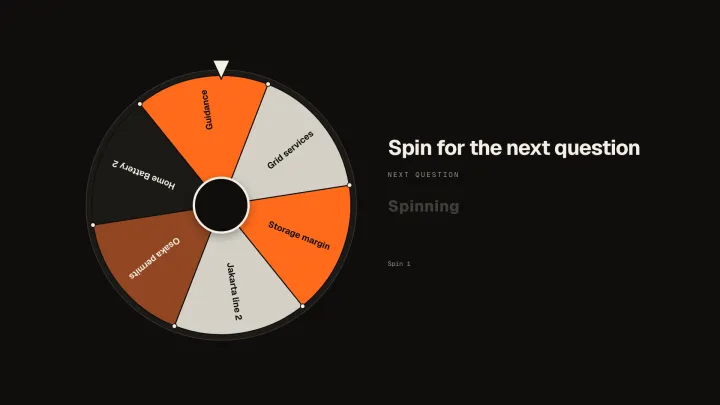
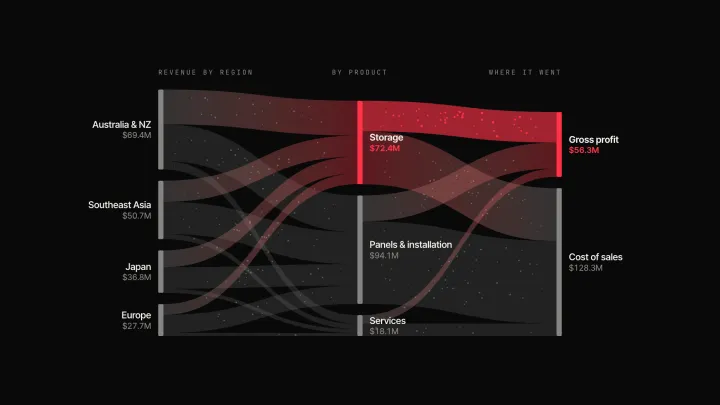
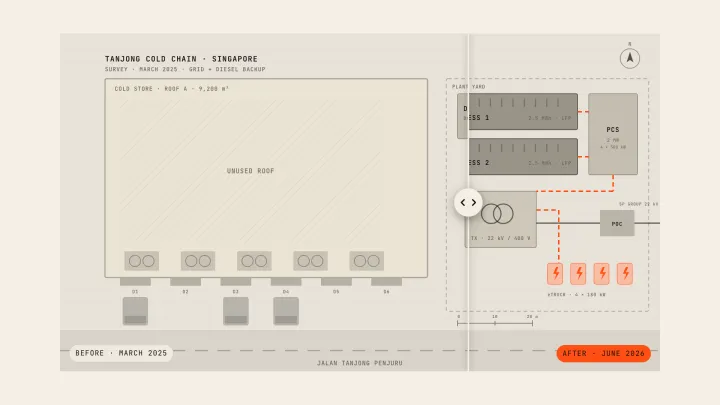
Motion backgrounds, kinetic type, charts that race, maps with flight arcs, diagrams that draw themselves, 3D, and widgets the presenter operates. Each is themed, has its settings as controls, and draws the same frame on the canvas, in the presenter view and in a video.
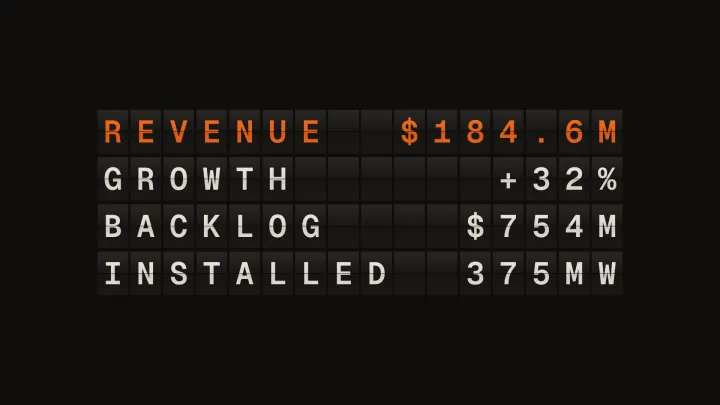

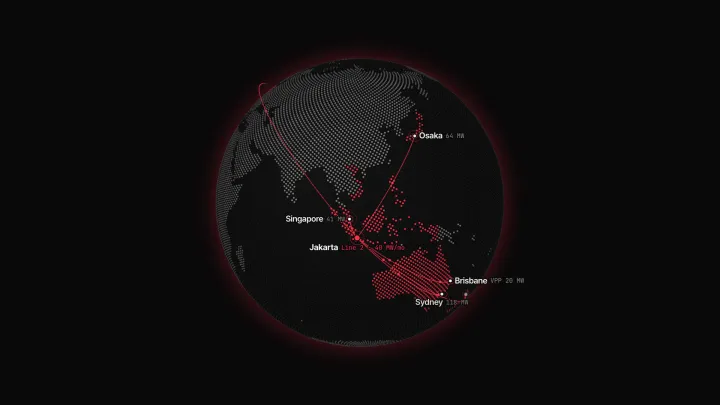

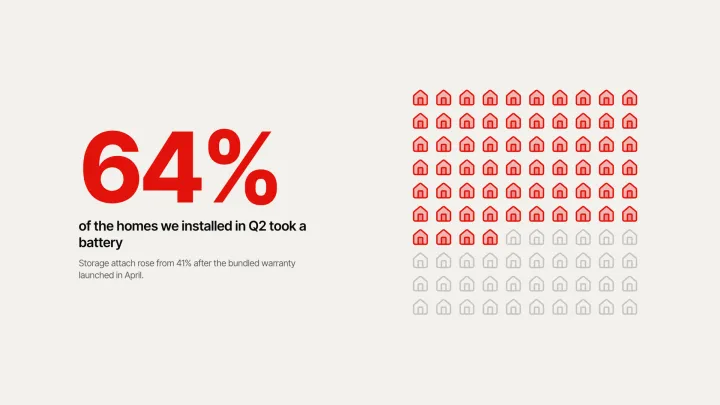
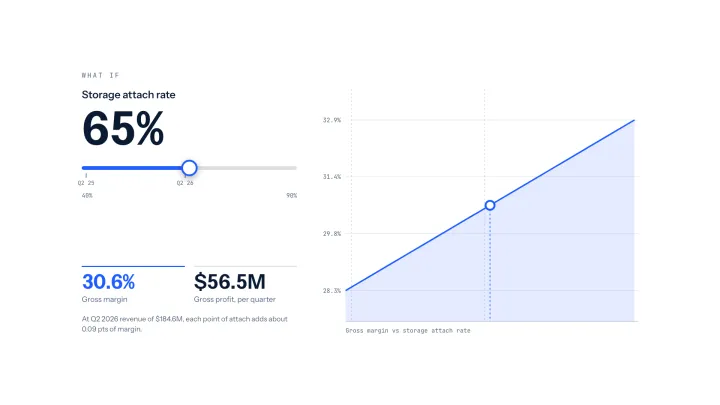
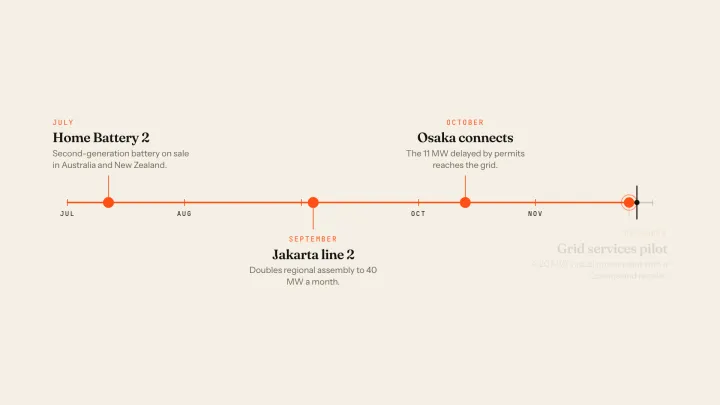
Every background is checked to keep a title legible in every built-in theme. Components from the community tab run in a sandboxed frame that cannot reach your keys.
Browse them in the studioPresent live, and operate the slide while you talk.
The presenter view keeps your notes, the next slide and a timer on your screen while the audience sees only the deck. Sliders that drive a chart, spin wheels, hotspots, flip cards, quizzes and an ink layer answer your clicks mid-talk.
- Rehearse once — your clicks and your voice are recorded together, and a video replays both.
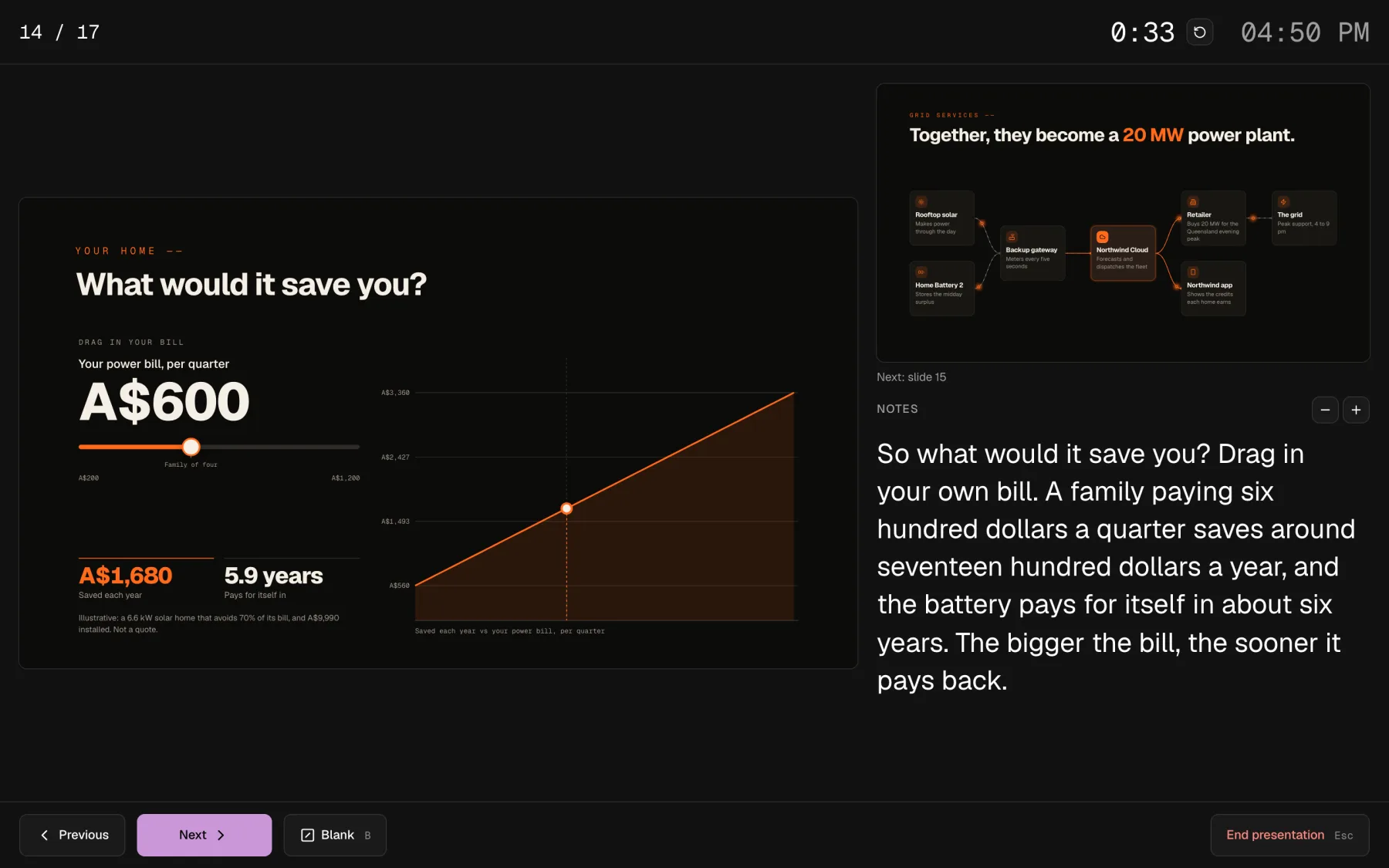
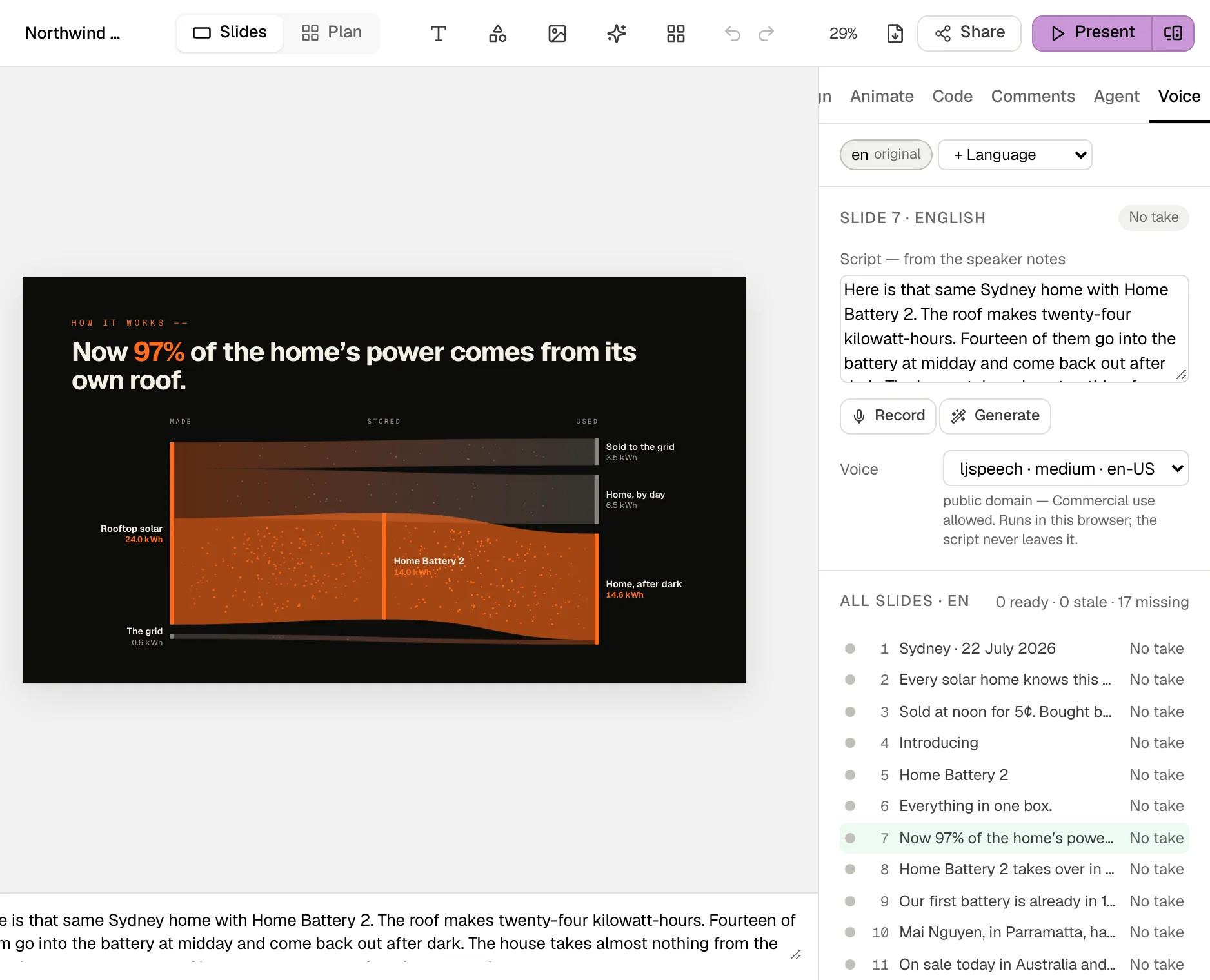
Narrate it, dub it, and export it as a video.
Each slide’s notes become its script. Record it in your own voice, generate it with a voice that runs in your browser, or use a cloud voice with your own key.
- Dubbing translates each script with your own agent and speaks it in the new language. The slide holds longer instead of the speech speeding up.
- Record video in the File menu captures the deck in real time, no install. The
openslides-rendercommand renders frame-exact MP4s — one per language or one with a track each, subtitles alongside or burned in.
Works with PowerPoint, in both directions.
Import a .pptx to keep working on it here, or import only its design — fonts, colours and layouts — and your company template becomes one of the looks for a new deck.
.pptx
The slides, or only the design system.pptx and PDF
Static: text stays editable, motion stays here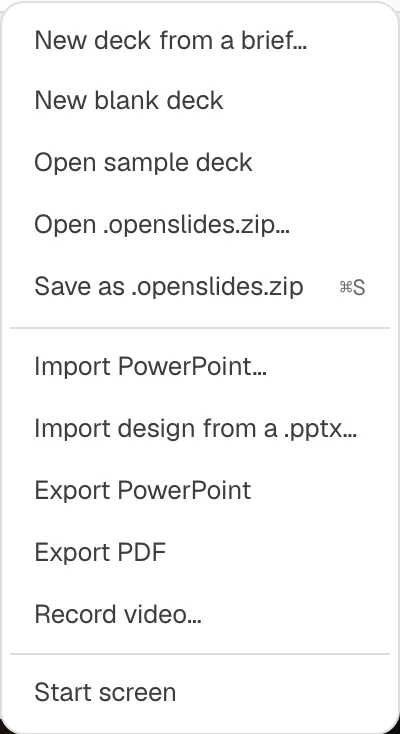
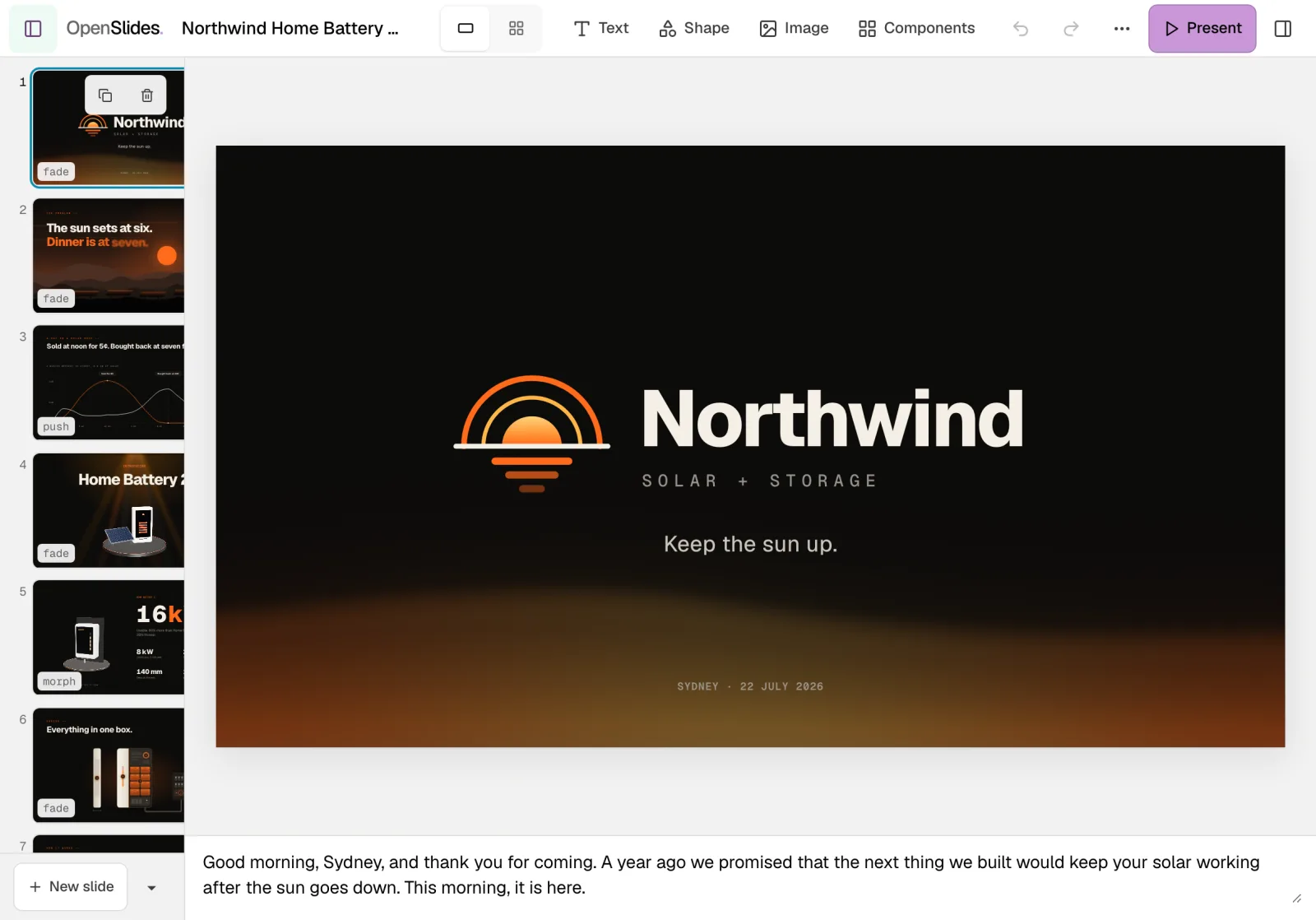
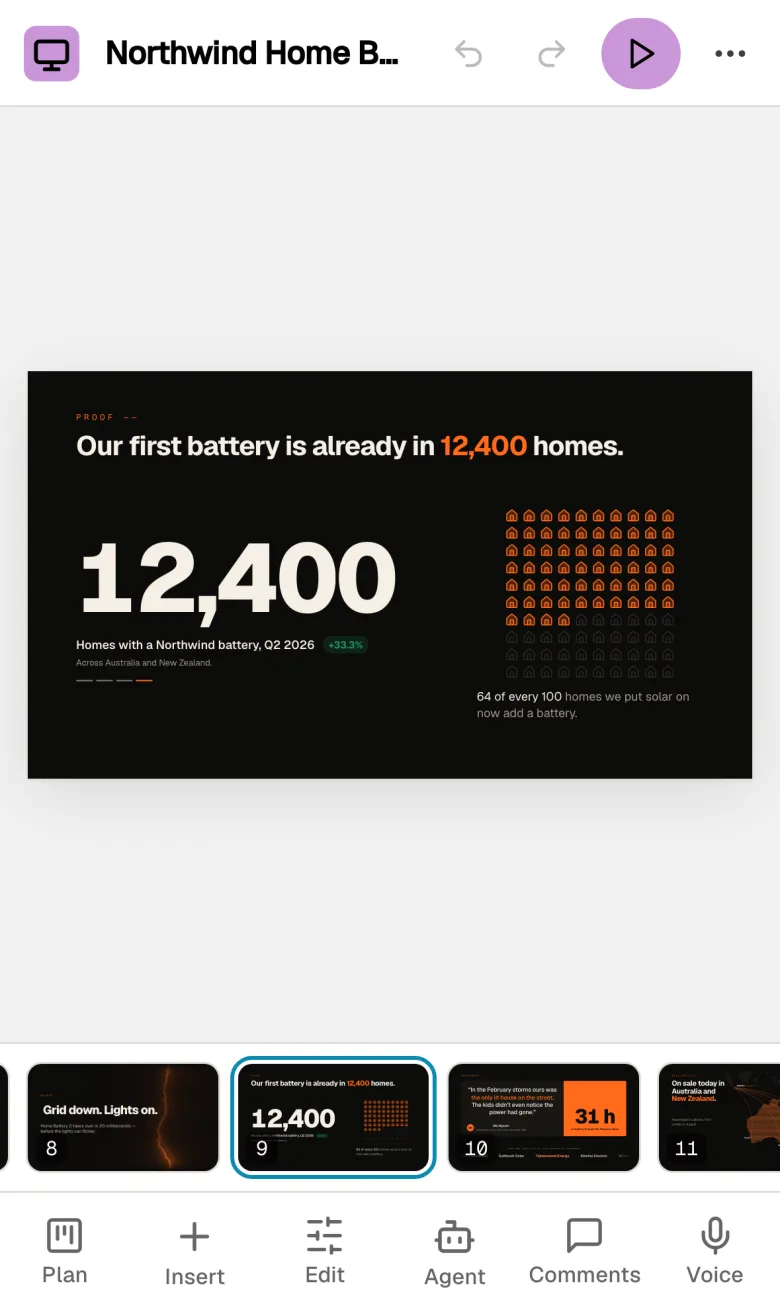
The whole studio on a phone or a tablet.
On a phone the studio rearranges itself around your thumb: slides in a filmstrip, tools in a tab bar — Plan, Insert, Edit, Agent, Comments, Voice. Tap to select, drag to move, pinch to zoom, long-press for the menu, and present from the same device.
From a brief to a finished deck in four steps, with or without a model.
Your agent is optional. With no key, the outline comes from your notes’ headings and bullets, so a first deck needs no model at all.
-
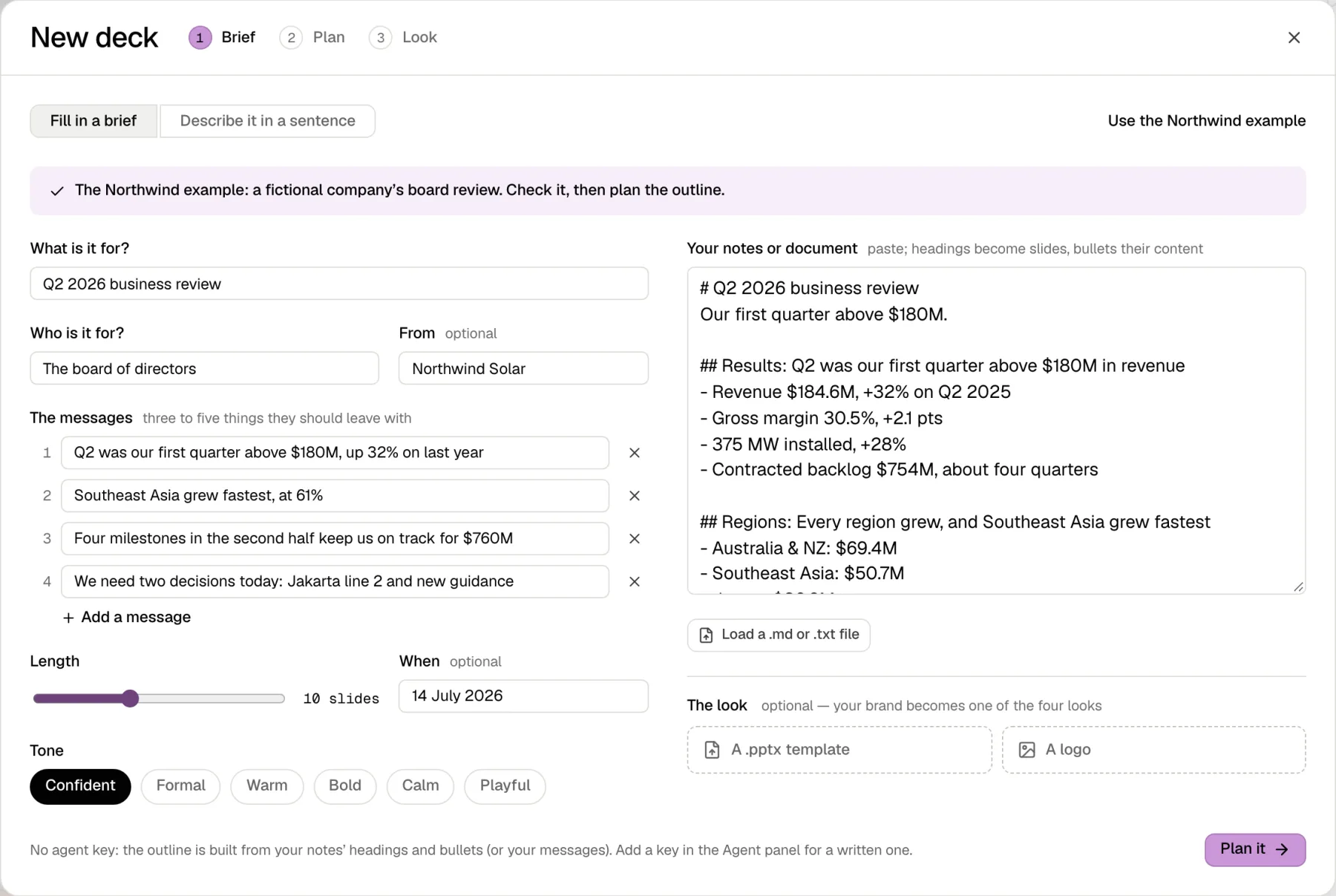 01 · Brief
Say what it is for.
Who it is for, and the three things they should leave with. Paste your notes or load a .md file, and add your .pptx template or logo if you have one.
-
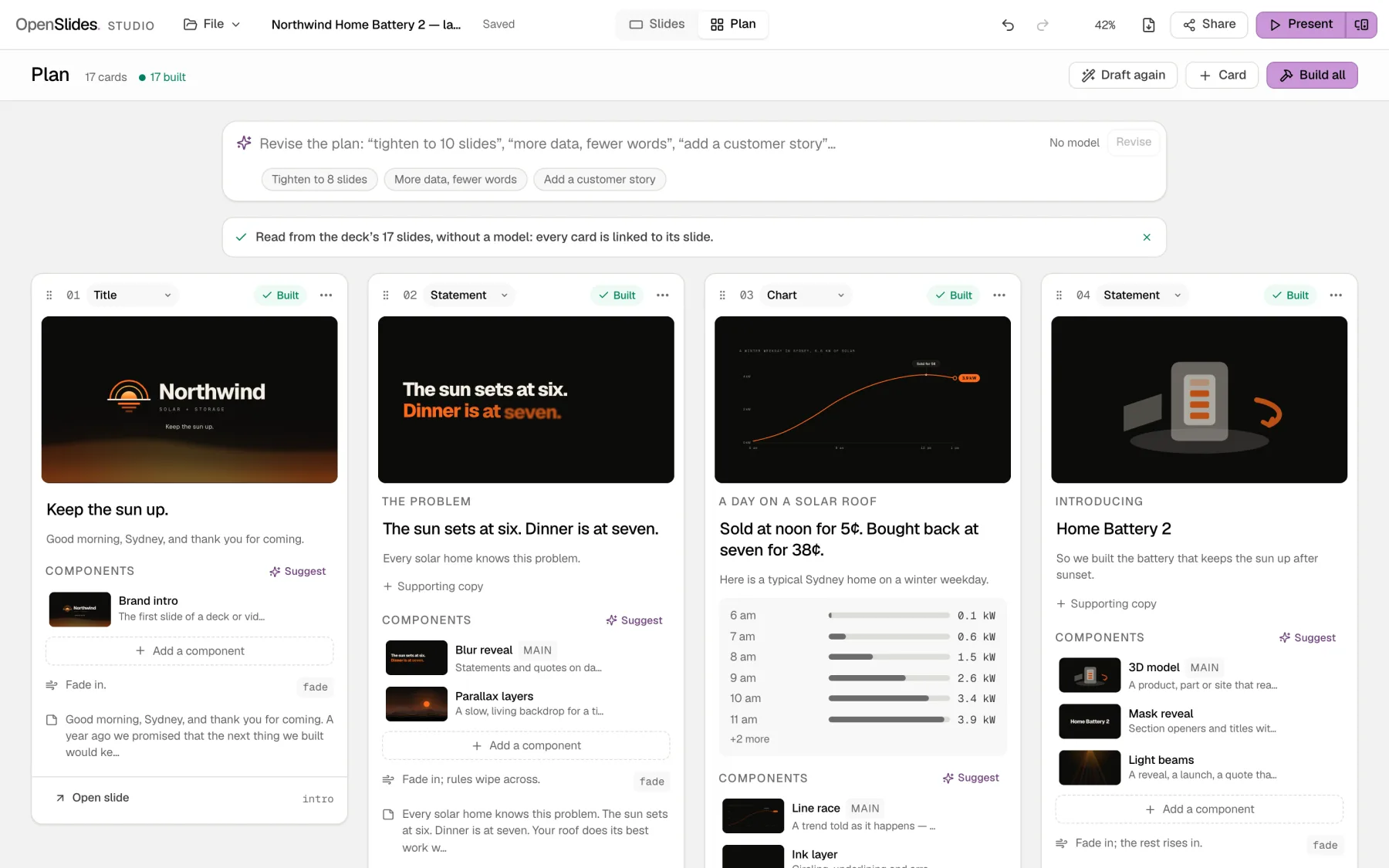 02 · Storyboard
Check the plan, card by card.
One card per slide: headline, message, components and notes. Drag to reorder, revise it in a sentence — “tighten to 8 slides” — and build one card or all of them.
-
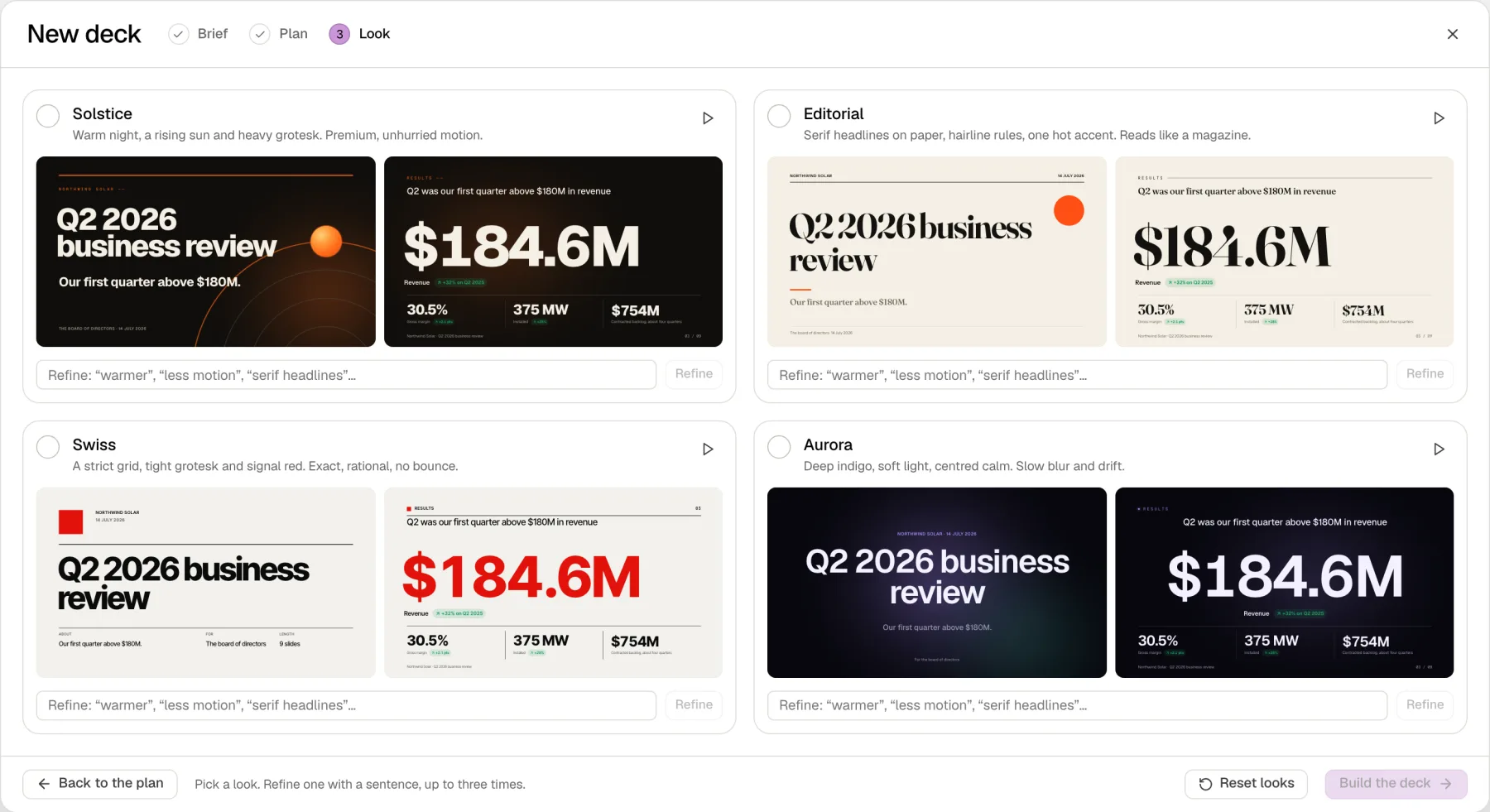 03 · Four looks
Pick one of four looks.
The same outline drawn four ways; your template or logo becomes one of them. Refine a look in a sentence — “warmer”, “less motion” — up to three times, then build the deck.
-
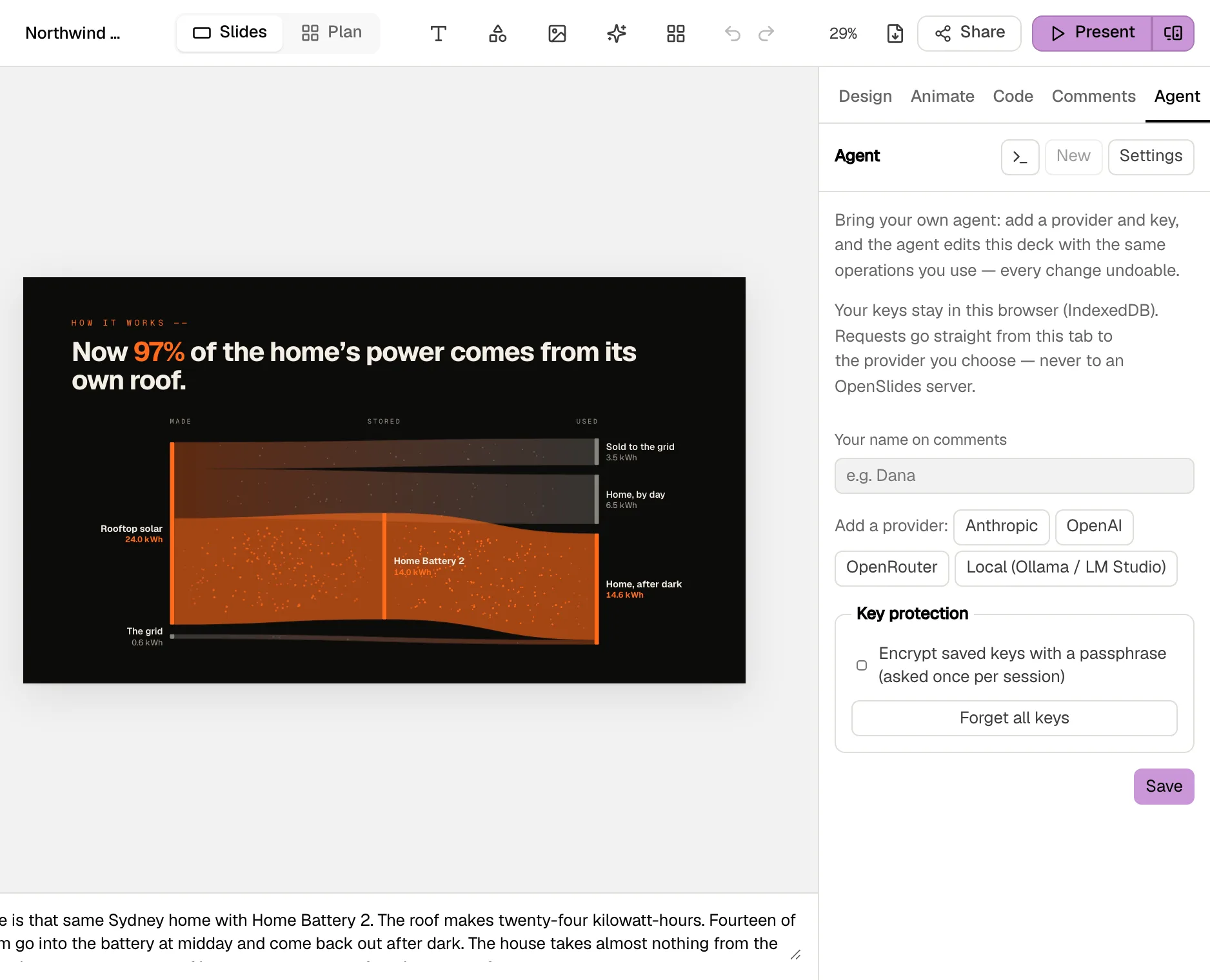 04 · Your agent
Refine it with your own agent.
Add a key for Claude, OpenAI or OpenRouter, or point it at a local model in Ollama or LM Studio. It edits with the same operations you do, so every change is one undo. Comment on any element and send the thread to it; it answers there.
An estimate, then a receipt
Each turn shows what it should cost before it runs and what it did cost after. A per-deck budget asks before a call would go over it.
It fixes its own work — twice
After the agent changes a slide the checks run. Anything it broke goes back to it at most twice; then it stops and says what is still wrong.
It leaves alone what you freeze
Freeze a slide or an element and the agent is refused on it. Deck rules — “never change the logo” — go with every turn, and Discuss mode answers without editing.
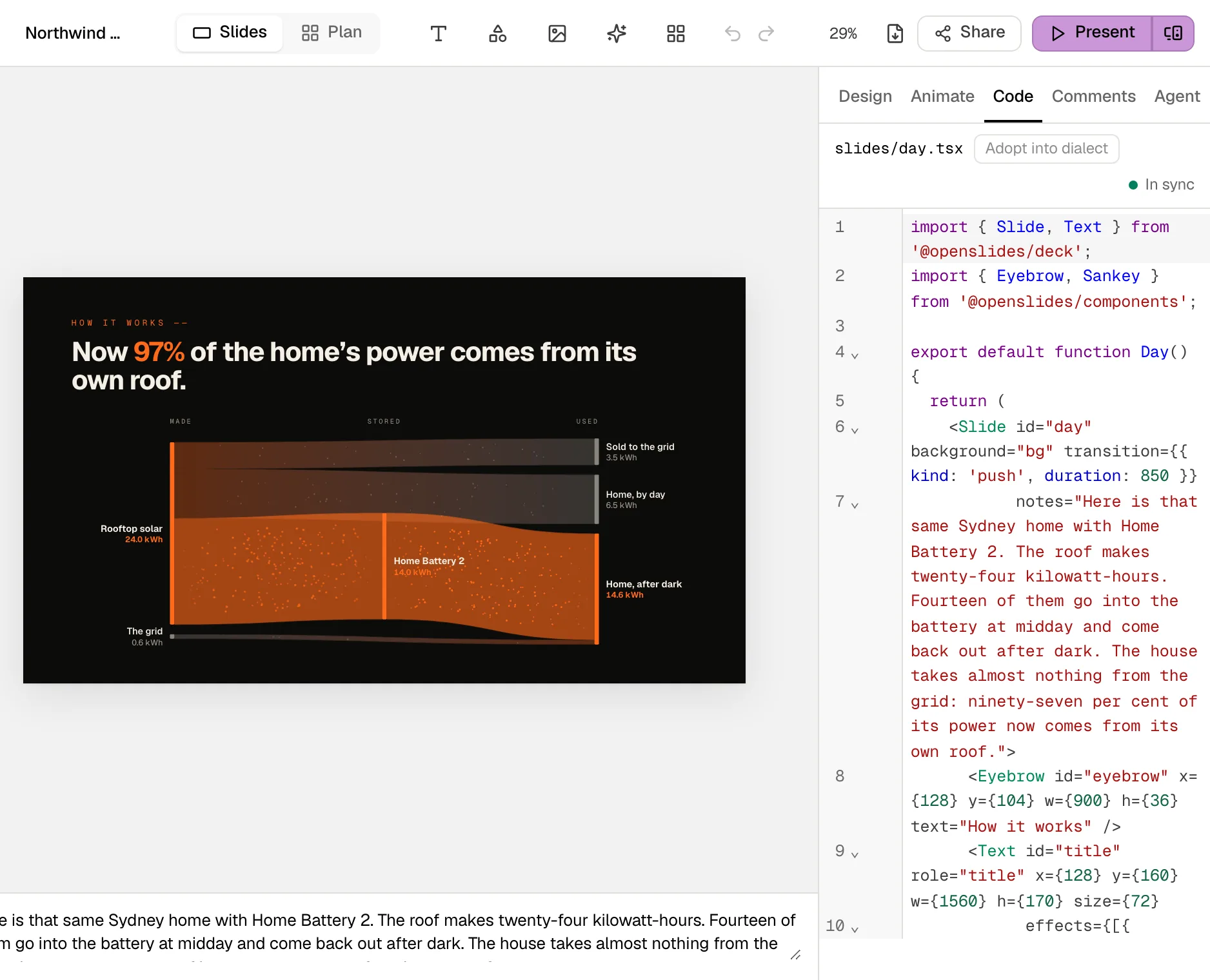
Every slide is a .tsx file you can read, edit and hand to an agent.
A deck is a folder: deck.json and one React file per slide, in a small dialect. Edit the code and the canvas follows; drag on the canvas and only the attribute you changed is rewritten, never the rest of your code.
# everything an agent needs to know about the studio
curl https://openslides.dev/studio/llms.txt

# a deck folder to video, in English and Japanese
openslides-render ./launch --lang en,ja --subtitles sidecar -o launch.mp4
TSX you can edit
The Code tab shows each slide’s source. Canvas edits patch only what changed, so your formatting and comments survive.
MCP for Claude Code and Codex
The openslides-studio server gives an outside agent 8 tools and the same 27 operations the studio uses, on a deck folder on your disk. The Agent tab copies a ready prompt.
A Claude Code plugin
Three skills — decks, components, video — with the MCP server, and 239 prompt templates for effects, transitions and whole compositions.
Two command-line tools
openslides-render makes MP4s, one per row of a spreadsheet if you like; openslides-publish writes the encrypted share site from a deck folder.
llms.txt
/studio/llms.txt describes the dialect, the operations and every component, for any model to read.
The studio, its code panel and llms.txt are live here. The MCP server, the plugin and the two command-line tools run from the source checkout; the public repository is not open yet.
Your deck stays on your device until you decide to share it.
There is no OpenSlides server behind the studio. It is a set of static files, and everything it does happens in your browser tab.
Stored in your browser
Decks, images and recordings live in this browser’s own storage. Save a
.openslides.zipwhenever you want a copy on disk.Keys go straight to your provider
An AI or voice key is kept in your browser, optionally encrypted with a passphrase. Requests go from your tab to the provider you chose — never through us.
The audience never gets your notes
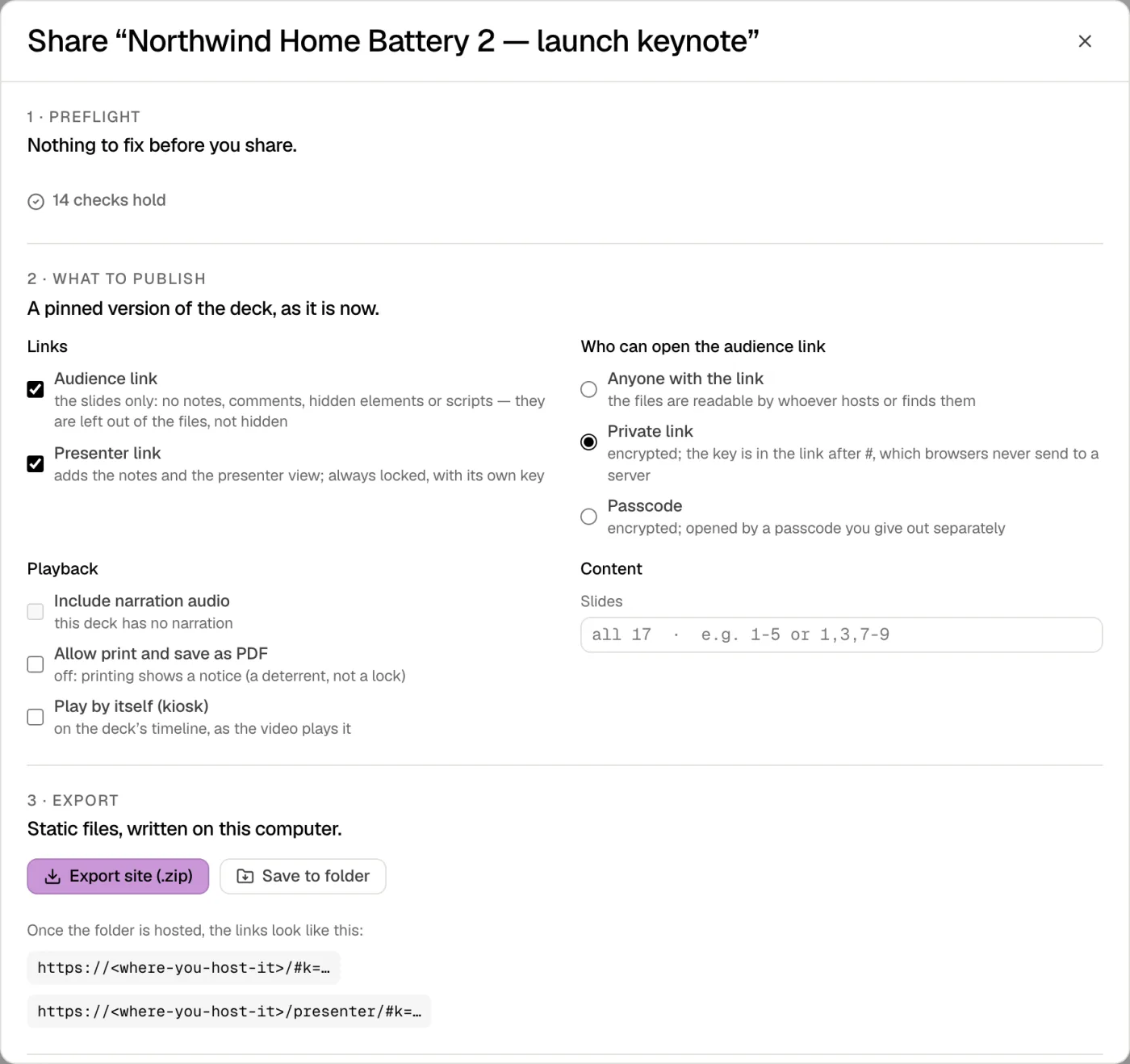
Share writes two static sites. The audience copy has the speaker notes and every author-only field removed from its data, not just hidden; the presenter copy keeps them and is always locked.
Private links the host cannot read
A private link is encrypted in your browser and its key lives after the
#, which browsers never send. Wherever you host the files, the host stores only what it cannot read.A preflight before anything leaves
Text that overflows, weak contrast, missing alt text and secrets left in the notes — each reported with a fix.
Free, all of it. The only bills are the ones you choose.
No account, no plan, no watermark, and no limit on decks or exports.
The studio
$0- Every component, theme and effect, and the community tab
- The brief, the plan and the four looks, with or without a model
- Presenting, the presenter view and rehearsal
- Narration in your own voice or a browser voice
- Video, PDF and .pptx export
- Share sites with private, encrypted links
What you might pay for
Billed by them, not us- AI turns — Anthropic, OpenAI or OpenRouter bill your own key. The studio shows the estimate and the receipt; a local model costs nothing.
- Cloud voices — ElevenLabs or OpenAI speech, on your own key. The browser voices are free.
- Hosting a shared deck — any static host you already use or trust.
We never see the key, the bill or the deck.
What people ask before they open it.
- Where do my files go?
Nowhere, unless you send them. The studio is static files running in your browser tab: decks, images and recordings stay in this browser’s storage, and you can save a .openslides.zip to disk at any time. Sharing writes a folder of static files that you host yourself, wherever you choose.
- Which AI can I use, and do I need a key?
You do not need one: the brief, the outline and the four looks work from your notes alone. To write and edit with a model, add a key for Anthropic (Claude), OpenAI or OpenRouter, or point the studio at a local model in Ollama or LM Studio. The key stays in your browser and requests go straight to that provider.
- Is it really free?
Yes. There is no paid tier and no account. If you use a cloud model or a cloud voice, that provider bills you on your own key; the studio shows an estimate before each agent turn and a receipt after it, and a per-deck budget asks before going over.
- How faithful is the PowerPoint import and export?
Import reads every shape where it sits, text through the template’s placeholders, pictures, tables, charts from their data, each slide’s transition and the template’s design system. It is an import, not a round trip: what the studio cannot express, such as SmartArt, is approximated or listed as a warning, never silently dropped.
Export is static. Text boxes keep their fonts, sizes, colours and bullets and stay editable, as do basic shapes and pictures; components are placed as pictures of themselves; speaker notes are kept, and fades, pushes, zooms and morphs become PowerPoint’s own transitions. Effects are not animated, so each element shows its final state. The PDF is one page per slide.
- Can the audience see my speaker notes?
No. The audience copy of a shared deck is built with the notes and every author-only field removed from its data, so there is nothing to find in the page source. Only the presenter copy has them, and it is always locked with its own key.
- Does it work on a phone or a tablet?
Yes. On a phone the studio switches to a filmstrip and a tab bar of tools; on a tablet it keeps the desktop layout with touch gestures. You can edit, use the agent, record narration and present from either.
- Is it open source?
Yes: the code is licensed MIT OR Apache-2.0, at your choice, and the bundled fonts are under the SIL Open Font License 1.1. The public repository is not open yet; until it is, the studio runs here and the command-line tools are not yet downloadable.
Open the studio. The launch keynote is one click away.
Free, no account, nothing uploaded — and your first deck needs no model at all.